Automating USB HDD Backups Without Killing the Drive
2025-12-26
The Problem
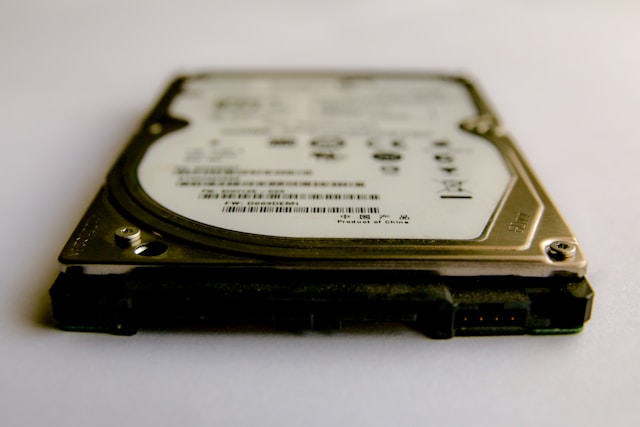
I have an external USB hard drive for backups. It’s old, mechanical, and the last thing I want is for it to spin 24/7 just sitting there idle. The backup script runs once a day via systemd timer, does its job, and should let the drive rest.
Except it doesn’t. Unmounting the drive doesn’t spin it down. The drive just keeps idling, burning power and lifespan for no reason.
The Failed Attempt
First instinct: unmount and hope the drive’s power management kicks in. Add hdparm -y /dev/sdb to spin it down.
Result: The drive reports “standby” but keeps spinning anyway. The activity light keeps blinking. Something isn’t respecting the standby command, probably the ext4 journal daemon that stays active even after unmount.
Not good enough.
The Reddit Solution
Found a thread on r/linuxquestions about udisksctl power-off -b /dev/sdb. This actually powers off the USB device - not standby mode, but full power-off like you unplugged it.
Run the command. Drive spins down. Light goes off. Success.
Run the backup script the next day. Device not found. The drive is still powered off and won’t wake up on its own.
Turns out when you power off a USB device with udisksctl, the kernel removes it from the USB bus entirely. The device node /dev/sdb1 disappears. No automatic wake-up. The drive needs manual intervention to come back.
This won’t work for automated backups.
The Wake-Up Problem
The same Reddit thread had the solution. When udisksctl power-off removes the device, you can bring it back by resetting the USB port. The trick is writing to a special sysfs file called bConfigurationValue.
Every USB device in /sys/devices/ has a bConfigurationValue file. Writing the current configuration value back to itself triggers a reset. The USB port re-enumerates, discovers devices, and the drive comes back online.
The challenge: you need to know which USB port to reset. And after power-off, the device’s sysfs path is gone. The entire device node disappears from /sys/devices/.
The Solution
Before powering off, save the USB controller’s sysfs path to a file. On the next run, use that saved path to reset the controller, which brings the device back.
The USB topology looks like this:
/sys/devices/pci0000:00/0000:00:14.0/usb2/2-1/2-1:1.0/.../block/sdbBreaking this down:
usb2is the USB controller (root hub)2-1is the device plugged into port 1 of controller 2- Everything after that is the actual drive
When you power off, 2-1 and everything under it disappears. But usb2 stays. That’s what we need.
The script finds the USB controller by:
- Following the symlink from
/sys/block/sdbto get the real device path - Walking up the directory tree looking for a directory named
usb[number]that hasbConfigurationValue - Saving that path to
/var/tmp/backup-usb-port-path
On the next run, if the device isn’t found:
- Read the cached USB controller path
- Read its current
bConfigurationValue - Write that value back to the same file
- Wait 3 seconds for re-enumeration
- The device reappears and mounting proceeds normally
The Script
This script does incremental backups of Immich and Gitea to an external USB drive, then powers it off completely. On the next run, it wakes the drive automatically.
#!/bin/bash

# Homelab Backup Script - Simplified Incremental Version
# Backs up Immich and Gitea only, incrementally (never deletes)
# Automatically mounts USB drive, performs backups, and unmounts
# Run manually or via systemd timer

set -e

# Configuration
BACKUP_DEVICE="/dev/sdb1"
BACKUP_MOUNT="/mnt/usb-backup"
LOG_FILE="/var/log/homelab-backup.log"
USB_PORT_CACHE="/var/tmp/backup-usb-port-path"

# Functions
log() {
    echo "[$(date '+%Y-%m-%d %H:%M:%S')] $1" | tee -a "$LOG_FILE"
}

error() {
    log "ERROR: $1"
    exit 1
}

log "=== Starting Homelab Backup ==="

# Check if drive is already mounted
DRIVE_ALREADY_MOUNTED=false
if mount | grep -q "$BACKUP_MOUNT"; then
    log "Backup drive already mounted"
    DRIVE_ALREADY_MOUNTED=true
else
    # Check if device exists (may be powered off)
    if [ ! -b "$BACKUP_DEVICE" ]; then
        log "Backup device not found, attempting to reset USB port..."

        # Try to use cached USB port path from previous run
        if [ -f "$USB_PORT_CACHE" ]; then
            USB_PORT_PATH=$(cat "$USB_PORT_CACHE")
            if [ -f "$USB_PORT_PATH/bConfigurationValue" ]; then
                log "Using cached USB port path: $USB_PORT_PATH"
                CONFIG_VALUE=$(cat "$USB_PORT_PATH/bConfigurationValue" 2>/dev/null)
                if [ -n "$CONFIG_VALUE" ]; then
                    echo "$CONFIG_VALUE" | sudo tee "$USB_PORT_PATH/bConfigurationValue" >/dev/null 2>&1
                    log "USB port reset, waiting for device to reappear..."
                    sleep 3
                fi
            else
                log "Cached USB port path no longer valid, removing cache"
                sudo rm -f "$USB_PORT_CACHE"
            fi
        else
            log "No cached USB port path found (first run after power-off)"
        fi

        # Check again after reset attempt
        if [ ! -b "$BACKUP_DEVICE" ]; then
            error "Backup device $BACKUP_DEVICE not found. Is the USB drive connected?"
        fi
        log "Backup device found after reset"
    fi

    # Mount the backup drive (this will wake a powered-off drive)
    log "Mounting backup drive..."
    if ! sudo mount "$BACKUP_DEVICE" "$BACKUP_MOUNT" 2>&1; then
        error "Failed to mount backup drive. Drive may not be connected or accessible."
    fi
    log "Backup drive mounted successfully"
fi

# Ensure backup directories exist
sudo mkdir -p "$BACKUP_MOUNT/immich"
sudo mkdir -p "$BACKUP_MOUNT/gitea"

# Backup Immich
log "Backing up Immich..."
if [ -d "/home/jawhng/docker/immich" ]; then
    IMMICH_BACKUP_DIR="$BACKUP_MOUNT/immich"

    # Backup Immich database
    if sudo docker ps --format '{{.Names}}' | grep -q immich-postgres; then
        log "Backing up Immich database..."
        sudo docker exec immich-postgres pg_dumpall -U postgres |
            sudo tee "$IMMICH_BACKUP_DIR/immich-db-latest.sql" > /dev/null
        log "Immich database backed up to immich-db-latest.sql"
    fi

    # Backup Immich library (photos) - incremental, no deletions
    if [ -d "/home/jawhng/docker/immich/library" ]; then
        log "Backing up Immich photo library (incremental)..."
        sudo rsync -ah --info=progress2
            /home/jawhng/docker/immich/library/
            "$IMMICH_BACKUP_DIR/library/"
            2>&1 | tee -a "$LOG_FILE"
        log "Immich library backed up"
    fi
else
    log "Immich not found at /home/jawhng/docker/immich (skipping)"
fi

# Backup Gitea
log "Backing up Gitea..."
if [ -d "/home/jawhng/docker/gitea" ]; then
    GITEA_BACKUP_DIR="$BACKUP_MOUNT/gitea"

    # Backup Gitea database
    if sudo docker ps --format '{{.Names}}' | grep -q gitea-db; then
        log "Backing up Gitea database..."
        sudo docker exec gitea-db pg_dumpall -U gitea |
            sudo tee "$GITEA_BACKUP_DIR/gitea-db-latest.sql" > /dev/null
        log "Gitea database backed up to gitea-db-latest.sql"
    fi

    # Backup Gitea data directory - incremental, no deletions
    if [ -d "/home/jawhng/docker/gitea/data" ]; then
        log "Backing up Gitea repositories and data (incremental)..."
        sudo rsync -ah
            /home/jawhng/docker/gitea/data/
            "$GITEA_BACKUP_DIR/data/"
            2>&1 | tee -a "$LOG_FILE"
        log "Gitea data backed up"
    fi
else
    log "Gitea not found at /home/jawhng/docker/gitea (skipping)"
fi

# Show backup summary
log "Backup summary:"
sudo du -sh "$BACKUP_MOUNT"/* 2>/dev/null | tee -a "$LOG_FILE" || log "No backups yet"

# Unmount the drive (only if we mounted it)
if [ "$DRIVE_ALREADY_MOUNTED" = false ]; then
    log "Unmounting backup drive..."
    if ! sudo umount "$BACKUP_MOUNT"; then
        error "Failed to unmount backup drive"
    fi
    log "Backup drive unmounted"

    # Save USB port path before powering off
    log "Saving USB port path for next run..."
    DRIVE_DEVICE=$(echo "$BACKUP_DEVICE" | sed 's/[0-9]*$//')  # Remove partition number
    DRIVE_NAME=$(basename "$DRIVE_DEVICE")  # e.g., sdb

    # Follow symlink from /sys/block/sdb to get real device path
    if [ -L "/sys/block/$DRIVE_NAME" ]; then
        USB_DEVICE_PATH=$(readlink -f "/sys/block/$DRIVE_NAME")
        log "Found device at: $USB_DEVICE_PATH"

        # Walk up directory tree to find USB controller (has bConfigurationValue and starts with 'usb')
        USB_PORT_PATH="$USB_DEVICE_PATH"
        while [ "$USB_PORT_PATH" != "/" ]; do
            DIR_NAME=$(basename "$USB_PORT_PATH")
            # Look for USB controller (usb1, usb2, etc.) which persists after device power-off
            if [ -f "$USB_PORT_PATH/bConfigurationValue" ] && [[ "$DIR_NAME" =~ ^usb[0-9]+$ ]]; then
                echo "$USB_PORT_PATH" | sudo tee "$USB_PORT_CACHE" >/dev/null
                log "USB controller path saved: $USB_PORT_PATH"
                break
            fi
            USB_PORT_PATH=$(dirname "$USB_PORT_PATH")
        done

        if [ ! -f "$USB_PORT_CACHE" ]; then
            log "Warning: Could not find persistent USB controller path"
        fi
    else
        log "Warning: Could not find device at /sys/block/$DRIVE_NAME"
    fi

    # Power off the drive
    log "Powering off backup drive..."
    if command -v udisksctl >/dev/null 2>&1; then
        udisksctl power-off -b "$DRIVE_DEVICE" >/dev/null 2>&1
        log "Backup drive powered off successfully"
    else
        log "Warning: udisksctl not found, drive may not power off automatically"
    fi
else
    log "Leaving drive mounted (was already mounted when script started)"
fi

log "=== Backup Complete ==="
echo ""
echo "✓ Incremental backup completed successfully!"
echo "  Check log: $LOG_FILE"
How It Works
Incremental Backups: The script uses rsync without the --delete flag. This means files are added or updated, but never removed. If you delete a photo from Immich, it remains in the backup. True archival backup.
Database dumps overwrite the same file each time (immich-db-latest.sql, gitea-db-latest.sql). Only the most recent database state is kept.
Power Management:
- Script runs via systemd timer
- Checks if device exists - if not, reads cached USB controller path
- Resets the controller by writing to
bConfigurationValue - Waits 3 seconds for device enumeration
- Mounts the drive and performs backup
- Finds and saves the USB controller path for next time
- Powers off the drive with
udisksctl power-off
Edge Cases:
- If the drive is already mounted when the script runs, it won’t unmount or power off (preserves manual operations)
- If the cached path is invalid, it gets removed
- First run after setup won’t have a cached path - just plug in the drive and run manually once
Systemd Timer
Create /etc/systemd/system/homelab-backup.timer:
[Unit]
Description=Daily Homelab Backup

[Timer]
OnCalendar=daily
OnCalendar=02:00
Persistent=true

[Install]
WantedBy=timers.target
Create /etc/systemd/system/homelab-backup.service:
[Unit]
Description=Homelab Backup Service

[Service]
Type=oneshot
ExecStart=/home/jawhng/backup-homelab.sh
Enable it:
sudo systemctl enable homelab-backup.timer
sudo systemctl start homelab-backup.timer
Results
The drive now:
- Stays powered off between backups (actually off, not just standby)
- Wakes up automatically when the backup runs
- Spins down completely after backup completes
- Requires no manual intervention
Drive lifespan preserved. Power consumption minimized. Backup automation maintained.
The solution required digging through sysfs documentation, Reddit threads, StackOverflow answers, and AI assistance to piece together. USB power management in Linux is documented but not exactly user-friendly. Worth it to not wear out the only backup drive I have.
Credits
Initial power-off approach from r/linuxquestions. USB reset technique from the same thread. Implementation debugging with Claude Code. StackOverflow and various forum posts for sysfs path navigation. The combination of all these sources produced a working solution.